The wifi key printed under a Bbox is a string of characters generated by an algorithm at the time of the router’s manufacture. This string, often composed of uppercase letters and numbers, serves as the default password to connect a device to the home network. Retrieving this key after losing it or sharing it without compromising network security requires understanding where it is stored and why keeping it as is poses an increasing problem.
Default Bbox wifi password and vulnerability to dictionary attacks
The wifi keys factory-provided on Bouygues boxes are produced by deterministic algorithms. The router associates its MAC address, a hardware identifier, and a lookup table to generate the string of characters printed on the label. The result appears random, but it follows a reproducible pattern.
Security researchers have demonstrated for several years that this type of generation can be reverse-engineered. By 2026, dictionary attack tools incorporate artificial intelligence models capable of deducing patterns from batches of default keys collected online. A default password is less random than it seems, because the actual combination space is reduced by the logic of the manufacturing algorithm.
ANSSI recommends in its guide updated in March 2026 to systematically replace the default key with a personal password of at least sixteen characters, mixing lowercase letters, uppercase letters, numbers, and special characters. Keeping the factory key exposes the network to a risk that most recovery tutorials do not address.
Before sharing your wifi access, the first useful measure is to customize this key. All the recovery methods described next remain valid, but they gain relevance once applied to a password you have chosen and not to the one printed under the device.
Retrieve the Bbox wifi key from the administration interface
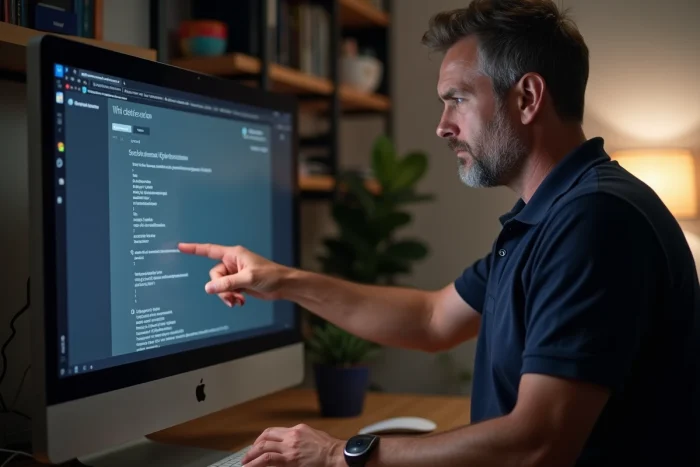
To view or modify the bbox wifi password, the router’s administration interface remains the most reliable method. It works from any browser, on computer or smartphone, as long as you are connected to the local network (via wifi or Ethernet cable).
- Open a browser and enter the address 192.168.1.254 in the URL bar, then log in with the administrator credentials (by default, “admin” for both username and password, unless previously changed).
- Access the “WiFi” or “Wireless Network” section depending on the Bbox model, then locate the “Security Key” or “WPA Password” field.
- Copy the displayed key or replace it with a new personal password that complies with ANSSI’s recommendations (minimum of sixteen characters, mix of types).
The change takes effect immediately: all devices already connected will be disconnected and will need to enter the new key. Remember to update the saved password on each device before confirming the change.
Share Bbox wifi via QR code without dictating the key
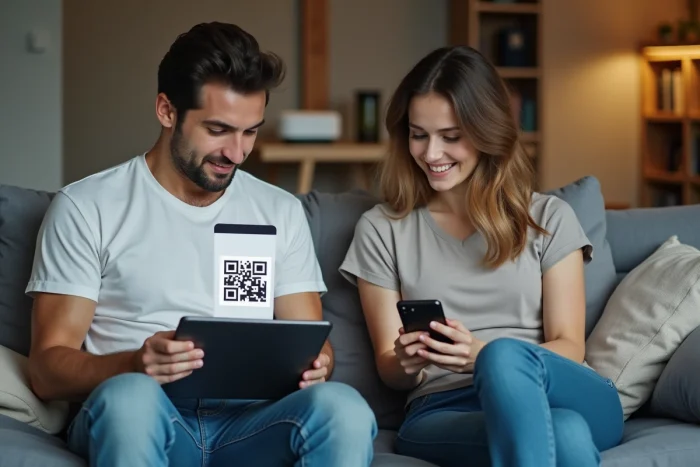
Dictating a sixteen-character key to a guest often leads to frequent input errors. The Bouygues Client Space app offers a QR code sharing function that eliminates this problem. The guest scans the code with their phone’s camera and connects automatically, without seeing or typing the password.
According to user feedback reported by CableReview, this function significantly reduces input errors, making it particularly convenient in family settings. The QR code does not reveal the key in plain text on the screen, which limits the risk of a visitor noting it down or passing it on to a third party.
Limitations of QR code sharing
The functionality depends on the version of the app and the phone’s operating system. Older Android models or certain manufacturer overlays do not always support automatic reading of wifi QR codes. On iPhone, compatibility has been native since iOS 11, covering almost the entire current user base.
If the QR code is not available in the app, an alternative is to generate a code manually via a wifi QR code creation site. The principle is the same: encode the SSID (network name), the encryption type (WPA2 or WPA3), and the password in a standardized format. The resulting code can be printed and displayed in the entryway or living room.
WPA3 encryption on Bbox: check and activate the correct protocol
The encryption protocol determines the strength of network protection, regardless of password complexity. WPA3 addresses several structural weaknesses of WPA2, including vulnerability to offline brute-force attacks. With WPA3, each connection attempt requires a direct exchange with the router, making dictionary attacks much slower.
Recent Bbox models, including the Bbox Ultym WiFi 7, support WPA3. To check the protocol’s activation, access the administration interface (192.168.1.254), open the advanced wifi settings, and select “WPA3” or “WPA2/WPA3 mixed” if some older devices are not compatible with WPA3.
When to keep WPA2/WPA3 mixed mode
A connected device that only supports WPA2 (some printers, smart devices, or older consoles) will not be able to join a network configured in strict WPA3. Mixed mode allows both protocols to operate simultaneously. Overall security remains lower than pure WPA3, but higher than WPA2 alone.
- Check the WPA3 compatibility of each connected device before switching to strict mode.
- Isolate older devices on the guest wifi network (2.4 GHz) in WPA2, and reserve the main network (5 GHz) for WPA3.
- Disable WPS (Wi-Fi Protected Setup), which remains a known attack vector, regardless of the chosen encryption protocol.
A strong password combined with WPA3 makes the Bbox home network resistant to the vast majority of current intrusion attempts. The password alone is not enough if the encryption protocol remains outdated: both parameters work together. Replacing the default key and enabling WPA3 constitutes the minimal security foundation for a home wifi network in 2026.